Profiling ASP.NET Core application executables
Overview
With NProfiler, you can directly profile the .exe file of your ASP.NET Core application if you are not using IIS or IIS Express. Although this could be accomplished with a conventional executable profiling session, we have built in a separate session type for this purpose, which makes it easier to configure some additional options.
If you are using IIS or IIS Express instead, please refer to the corresponding articles for IIS profiling and IIS Express profiling.
Step by step
- Start NProfiler. The session configurator opens automatically. Alternatively, click Home → Session → New in the ribbon to open the session configurator.
- Select the application type “ASP.NET Core” at the top.
- Configure the desired application options.
- Finally, configure general profiling options in the “Profiling Options” section.
- Click “Start”.
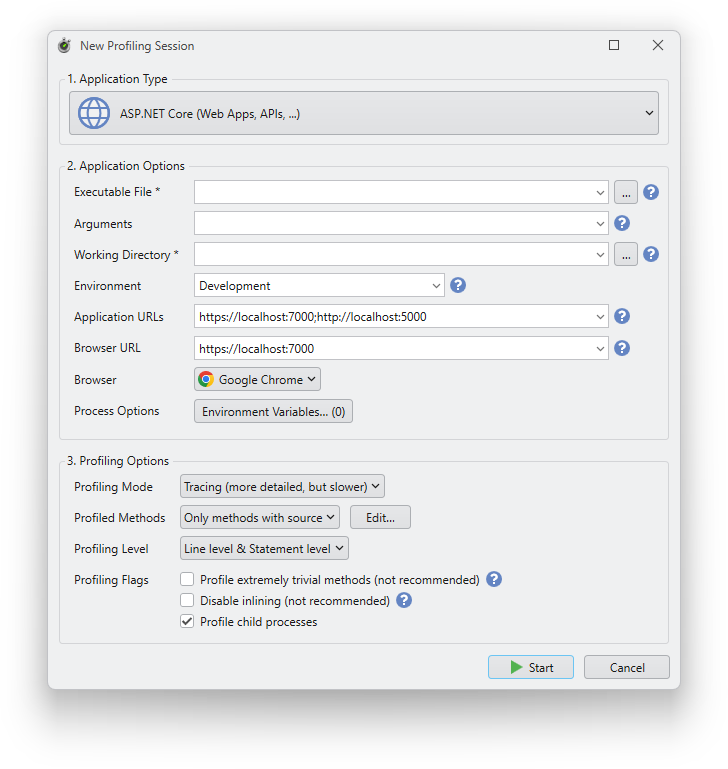
Application options
Executable file
Required. The full path of the ASP.NET Core application executable file to be profiled. Click the “...” button on the right to select a file. You can also select a previously used path from the drop-down list.
Arguments
Optional. Enter command line arguments for the executable file.
Working directory
Required. Enter the working directory for the process. By default, this field is automatically filled in based on the path of the executable file. Typically, this should be the directory that contains the “wwwroot” folder. Otherwise, the application may not be able to resolve static assets. Only change it if you know what you are doing.
Environment
Optional. The ASP.NET Core runtime environment that specifies where the application is running (e.g., Development, Staging, Production). If the field is empty, Production is used as the default value.
Application URLs
Optional. The IP addresses or host addresses with ports and protocols that the server should listen on for requests. Enter a semicolon-separated (;) list of URL prefixes to which the server should respond (e.g., http://localhost:123). Use “*” to indicate that the server should listen for requests on any IP address or hostname using the specified port and protocol (e.g., http://*:5000). The protocol (http:// or https://) must be included with each URL. The default value is http://localhost:5000.
Browser URL
Optional. The URL to be opened in the browser. Leave the field blank if you do not want the browser to open. The drop-down list contains URL suggestions based on the application URLs.
Browser
Optional. The browser to be used to open the browser URL.
Environment variables
Optional. Click the “Environment Variables” button to specify environment variables for the profiled process. The number on the button indicates the number of environment variables currently defined.