Profiling .NET applications running on IIS Express
Overview
This article explains how to profile ASP.NET and ASP.NET Core applications running on IIS Express. If you are using Visual Studio, you only need to enter the path to your web application's .exe or .dll file, and the other options will be detected automatically.
If you are not using IIS Express and want to profile the .exe file of an ASP.NET Core application directly, please refer to our article on ASP.NET Core profiling.
Step by step
- Start NProfiler. The session configurator opens automatically. Alternatively, click Home → Session → New in the ribbon to open the session configurator.
- Select the application type “IIS Express” at the top.
- Configure the desired application options.
- Finally, configure general profiling options in the “Profiling Options” section.
- Click “Start”.
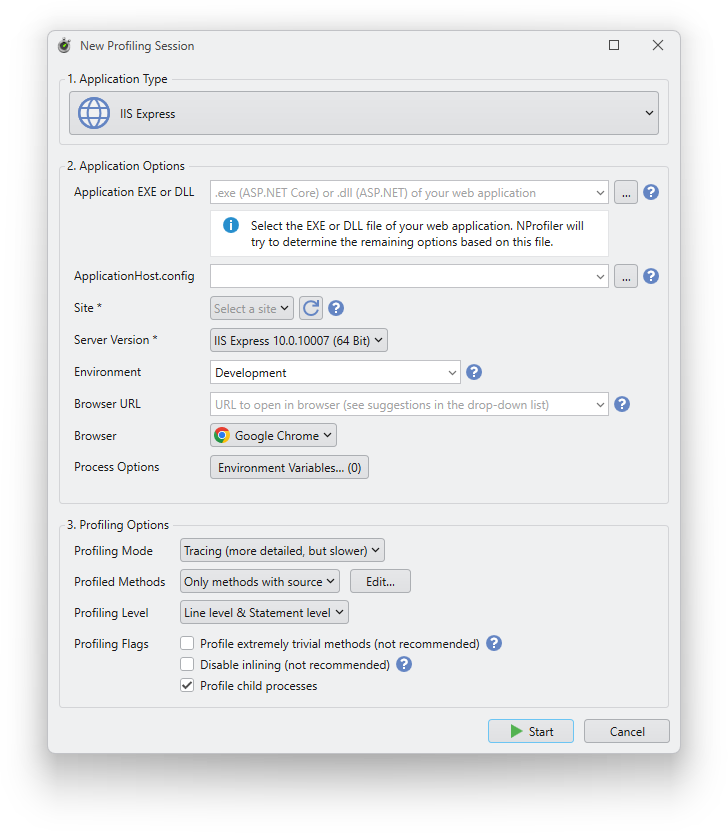
Application options
Application EXE or DLL
Optional. The full path to the executable file (.exe) of your ASP.NET Core web application, or to the DLL file for traditional ASP.NET applications. While this field is not strictly required to start an IIS Express profiling session, the path may be required by the Visual Studio project configuration you are using. In addition, NProfiler attempts to detect the remaining options based on this path. Click the “...” button on the right to select a file. You can also select a previously used path from the drop-down list.
ApplicationHost.config
Optional. The path to the IIS Express applicationhost.config file to be used. For Visual Studio projects, the project-specific file is usually located in [SolutionDir]\.vs\[SolutionName]\config, which should be automatically detected based on the application EXE or DLL. Leave the field blank to use the default file in %userprofile%\Documents\IISExpress\config.
Site
Required. The website from the applicationhost.config file that you want to profile. This should also be selected automatically based on the application EXE or DLL.
Server version
Required. The IIS Express server version to be used.
Environment
Optional. The ASP.NET Core runtime environment that specifies where the application is running (e.g., Development, Staging, Production). If the field is empty, Production is used as the default value. This field is ignored by traditional ASP.NET applications.
Browser URL
Optional. The URL to be opened in the browser. Leave the field blank if you do not want the browser to open. The drop-down list contains URL suggestions based on the selected site.
Browser
Optional. The browser to be used to open the browser URL.
Environment variables
Optional. Click the “Environment Variables” button to specify environment variables for the profiled process. The number on the button indicates the number of environment variables currently defined.