Profiling .NET applications running on IIS
Overview
NProfiler supports profiling ASP.NET, ASP.NET Core, and other .NET applications running on IIS 7 or later. Simply select the sites or applications you want to profile and click Start.
Step by step
- Start NProfiler. The session configurator opens automatically. Alternatively, click Home → Session → New in the ribbon to open the session configurator.
- Select the application type “IIS 7+” at the top.
- Configure the desired application options.
- Finally, configure general profiling options in the “Profiling Options” section.
- Click “Start”.
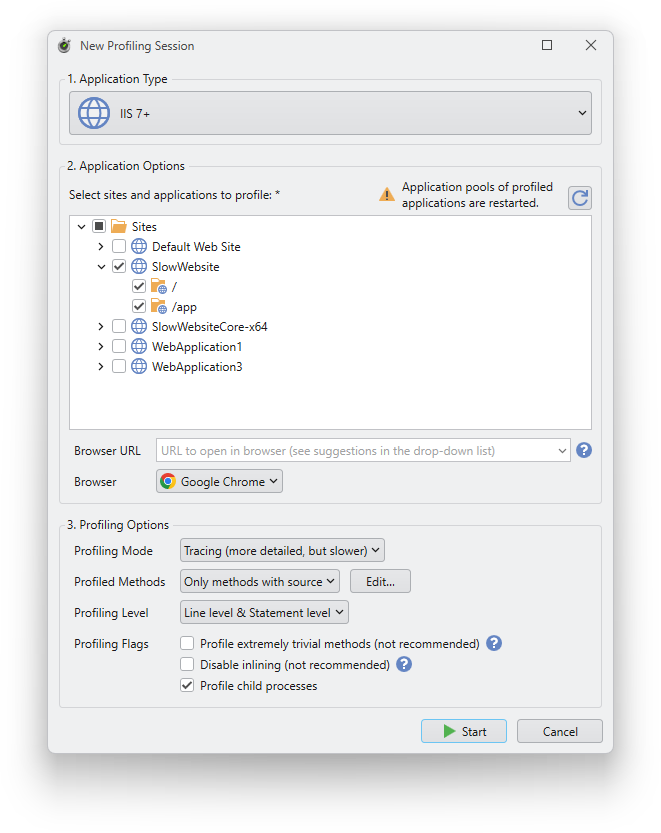
Application options
Sites and applications
Required. Select one or more sites or applications to be profiled. Although you can select individual applications here, profiling actually takes place at the application pool level. This means that other applications in the same application pool are also profiled, even if they have not been selected.
Browser URL
Optional. The URL to be opened in the browser. Leave the field blank if you do not want the browser to open. The drop-down list contains URL suggestions based on the selected applications.
Browser
Optional. The browser to be used to open the browser URL.
Remarks
Prior to IIS 10, the entire IIS was restarted at the beginning and end of the profiling session. Starting with IIS 10, only the profiled application pools are restarted.